Inboxes
Default Voicemail Recording
The Default Voicemail Recording is the greeting callers hear before the beep, not the message they leave. Each personal or shared inbox has its own default greeting. Waveline can reuse it whenever that inbox routes a call to voicemail or a teammate sends a ringing call directly to voicemail.
Why use a default greeting?
An inbox default keeps the caller experience consistent without requiring you to upload the same greeting to multiple voicemail steps. Shared inboxes can use a business, location, department, or team greeting, while personal inboxes can use a greeting for that teammate's direct line.
Waveline's starter routing already uses the inbox default. When you update it, every Voicemail step configured to use the inbox default begins using the new greeting.
Before you begin
- You must be an inbox Manager or have an organization role that lets you manage the selected inbox. Being a Member of your personal or shared inbox does not by itself let you change its greeting. See Inbox Participants.
- Select the personal or shared inbox whose callers should hear the greeting.
- Prepare a supported audio file no larger than 10 MB, or a script to generate with AI.
- Use wording that makes sense anywhere the inbox sends callers to voicemail.
- Plan to place a test call from an outside phone number.
Where to find it
Ready to add your greeting?
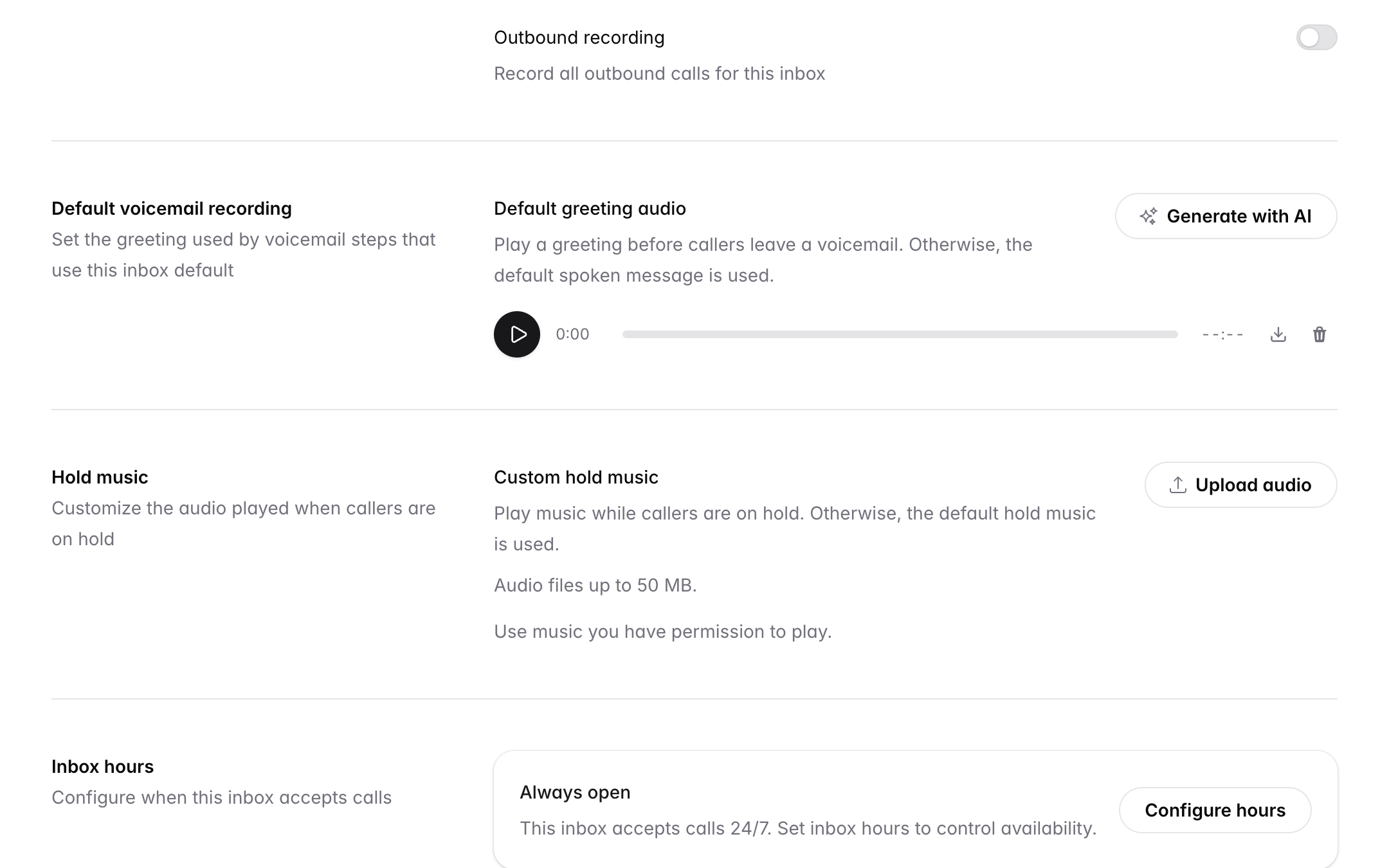
Open Inboxes, select the inbox, and scroll to Default voicemail recording.
Add the default greeting
In the web app, open the inbox’s Default voicemail recording setting.
To use your own recording, select Upload audio, choose an audio file of up to 10 MB, and wait for the attached player to appear.
To create audio from text, use Generate with AI. For the generation and preview steps, see Generate audio with AI.
Wait for the setting to finish saving. Allow up to one minute, then test a call that reaches a Voicemail step using the inbox default. Changing this default does not require republishing the call flow.
Generate audio with AI
Generate with AI turns a written script into audio. You can preview the clip before applying it. In the web app, it is available for the inbox’s default voicemail greeting, the inbound and outbound recording disclosures, and the Play Audio, Phone Menu, and Voicemail call-flow steps, which each explain their own script. Hold Music does not support AI generation; upload your own audio instead.
Generate a voicemail greeting with AI
Open the default greeting
In the web app, open the inbox’s Default Voicemail Recording setting.
- Open the setting or call-flow step where you want to use the audio.
- Select Generate with AI.
- Enter or edit the Script. Include exactly what callers should hear, including any menu choices or directions.
- Select Generate audio and wait for the result.
- Play the preview. Listen for pronunciation, completeness, pacing, and whether the wording matches the selected setting.
- Select Use this audio when the clip is ready.
The dialog uses its configured voice and speed; it does not provide voice or speed selectors. Review the script limit or validation message shown by the dialog before generating.
If the completed clip needs a change, edit the script or use Generate again, then preview the new result.
If generation has not returned a completed clip, use Check generation when shown. Use the new-clip action only when you intend to start another generation. Do not assume an uncertain request has failed and repeatedly start new clips.
For an inbox-level greeting or disclosure, confirm that the audio appears in that setting and allow the save to finish. For a call-flow step, using a clip updates the draft; save and publish the flow when the audio and routing are ready. Previewing or attaching a clip does not by itself publish a call-flow change.
Understand which greeting callers hear
- When Use inbox default greeting is enabled, the Voicemail step plays the current inbox default.
- If no custom inbox greeting has been uploaded, Waveline plays its built-in spoken greeting.
- When Use inbox default greeting is disabled, that Voicemail step can use its own custom greeting.
- Changing the inbox default does not affect Voicemail steps that have their own greeting.
A greeting does not send calls to voicemail
Uploading a greeting does not change the inbox's routing. The published routing must reach a Voicemail step, or a teammate must use Send to voicemail while the call is ringing.
See Call Flow Voicemail for help configuring a Voicemail step.
Create a useful greeting
Uploading your own greeting helps callers feel confident that they reached the correct business. A recognizable business name, natural voice, and helpful instructions strengthen your brand and make the experience feel more personal instead of generic or automated.
A useful greeting should:
- Identify the business, department, team, or person.
- Explain that nobody is currently available.
- Ask for the caller's name, number, and reason for calling.
- Set a realistic expectation for follow-up.
- Remain concise and easy to understand.
For example:
“You've reached the Waveline Support team. We're unable to answer right now. Please leave your name, phone number, and a brief description of how we can help, and a teammate will return your call as soon as possible.”
If the same greeting is used during and after business hours, avoid wording that only makes sense at a particular time.
Use different greetings when needed
Each personal inbox can have its own default greeting. We recommend that teammates record a personal greeting when their number may be shared with customers. Hearing the teammate's name and voice reassures callers that they reached the right person and makes the experience feel more personal.
If an after-hours route, department option, or other call path needs a different message, configure that Voicemail step with its own Greeting Audio instead of the inbox default. Changes to a call-flow-specific greeting must be saved and published. See Call Flow Voicemail for configuration steps.
Replace or remove the greeting
To remove the attached greeting, select its trash icon, review Remove audio?, and select Remove audio. You can then upload a replacement or generate a new greeting.
Removing the custom default returns Voicemail steps that use the inbox default to Waveline’s built-in greeting. Steps with their own custom audio are unchanged.
Wait for the setting to finish saving and allow up to one minute before testing another call.
Test the complete experience
- Call the inbox from an outside phone number.
- Let the call follow each relevant route to voicemail.
- Confirm that the correct greeting and recording tone play.
- Leave a test message.
- Confirm that the voicemail appears where the team reviews calls and messages.
- Test the Send to voicemail action if the team uses it.
See Voicemail for reviewing messages and Unhandled Calls for managing voicemail follow-up.
Best practices
- Keep the default greeting general enough for every route that uses it.
- Record in a quiet location and use a clear, natural speaking voice.
- End with a clear instruction such as, “Please leave a message after the beep.”
- Trim unnecessary silence from the beginning and end so callers hear the greeting and beep without a long delay.
- Avoid long introductions and background noise.
- Do not promise a response time the team cannot consistently meet.
- Use a call-flow-specific greeting when callers need different instructions.
- Retest after replacing or removing the greeting.
Troubleshooting
The built-in Waveline greeting plays instead of my greeting
Confirm that the custom file still appears under Default greeting audio and that you edited the correct inbox. Allow up to one minute after an upload or removal before testing again.
The wrong custom greeting plays
Check whether the Voicemail step has Use inbox default greeting disabled. A greeting uploaded directly to that step takes precedence over the inbox default.
My updated greeting does not play
Allow up to one minute for the inbox default to update, then start a new test call. If that route uses a call-flow-specific greeting, changing the inbox default will not affect it.
Removing a call-flow greeting did not restore the inbox default
Removing a greeting uploaded directly to a Voicemail step does not switch that step back to the inbox default. Turn Use inbox default greeting back on, then save and publish the call flow.
Callers never reach voicemail
Uploading a greeting does not change call routing. Confirm that the published call flow connects the relevant route to a Voicemail step. See Call Flow Voicemail for more help.
My audio upload fails
Confirm that the file is a supported audio format and no larger than 10 MB, then try again from the web app. If the problem continues, export a new copy of the audio in a common format such as MP3 or WAV.
I cannot change the default greeting
Use the web app and confirm that you are an inbox Manager or have an organization role that lets you manage it. Default greeting uploads, generation, and removals are not available in the mobile inbox settings. See Inbox Participants for access details.
The voicemail message does not appear after the call
Confirm that the caller waited for the beep and left a message. Allow the call time to finish processing, then refresh the Calls page and verify that you have access to the inbox.