Trust and compliance
Register for SMS
Register your business before sending customer text messages from Waveline. This guide covers registration for local numbers and the separate verification used for toll-free numbers.
SMS registration applies to outbound messages
This registration applies to customer messages your organization sends from Waveline. It does not register incoming messages from customers. Receiving a customer message and receiving approval to send outbound customer messages are separate behaviors.
Registration does not replace consent
Registration approval does not give permission to text every customer. Your organization remains responsible for collecting consent, honoring opt-out requests, and sending content that matches the approved use case. Review Opt-Out and Compliance before messaging customers.
Register for SMS
Start texting setup
Choose Text messaging now in Trust Center and select the types of messages your business will send.
Before you begin
The following setup steps are for local-number texting. For a toll-free number, use Verify toll-free texting.
Prepare:
- An accurate or already approved Business Profile.
- A clear description of every type of customer text the organization sends.
- An explanation of exactly where and how customers opt in.
- Public Privacy Policy and Terms of Service pages.
- Two to five realistic message samples.
- Any links or phone numbers that normally appear in messages.
- Time to review the billing notice before submitting.
Where to begin
- Open Settings → Trust Center in the web app as an Owner or Admin.
- Select Set up texting in Texting registration.
- Choose the types of messages your business will send.
- Choose whether you can edit your company website's forms and policies. For an existing website, enter its address and select Continue. If you need a Waveline-hosted website and hosting is available, follow Build and Publish Your Business Website.
- Complete any unfinished business details, then Texting, Sample messages, and Review & submit. See Business Profile and Voice Trust for the business fields.
If texting setup is already underway, use the current Start, Continue, or Review & submit action. Use Change texting setup when offered to change the website or messaging purposes before submission. Submitted business details remain available; starting texting does not require a new Business Profile.
Understand registration status
Trust Center may show separate Business Profile, Brand, and Campaign statuses. They describe business verification and approval of your customer-texting program. You do not need to complete a separate Brand form.
Follow the action shown in Texting registration. A saved draft, a submitted registration, and a number that is ready to send are different states.
Choose what your business texts about
Select the purposes that match your actual messages:
- Customer care and conversations: Answers to questions and requested support.
- Appointments and account updates: Confirmations, reminders, and account information.
- Order and delivery updates: Order status, shipping, and delivery information.
- Marketing and promotions: Offers and promotional announcements.
When shown, choose the Messaging volume option that matches your business. Keep the messaging purposes accurate rather than selecting a different purpose just to continue.
Your purposes, message description, consent process, public website, and samples should describe the same customer experience. Service and marketing consent remain separate when both types apply.
Describe what you text about
In What you text about, identify your business, who receives messages, why they receive them, and the message categories you selected. Describe the real customer relationship instead of using a vague phrase such as “customer messages.”
For example:
Cedar Lane Services sends appointment confirmations, reminders, and service updates to customers who request a booking and choose to receive service texts.
Use wording that matches your business and follow any length or formatting message shown by Waveline.
For a field marked From your Waveline website, use Change on website. For the draft, publication, and registration steps, see Continue registration.
Describe how customers sign up
In How customers sign up, explain where customers encounter the opt-in, what action they take, which messages they agree to receive, and where the disclosures and policies appear.
Describe the process your business actually uses. If customers choose service and marketing messages separately, explain those separate choices. Do not claim that someone agreed to marketing merely because they requested service or sent you a message.
For a Waveline-hosted website, the published sign-up flow supplies the corresponding registration wording. Use Change on website when that flow needs correction, then publish the updated site.
Add the Privacy Policy and Terms URLs
Both pages must:
- Use complete URLs beginning with http:// or https://.
- Be publicly accessible without signing in.
- Represent the organization submitting the registration.
- Contain current information rather than placeholder text.
Create realistic message samples
The form accepts two to five samples, and every non-empty sample must contain between 20 and 1,024 characters.
- Write samples that closely resemble messages the organization will actually send.
- Identify the business when the recipient may not recognize the number.
- Include the expected opt-out language in at least one sample.
- Include representative links and phone numbers when they will appear in real messages.
Adapt each sample to the organization's real messaging. For example:
John Doe LLC: Your appointment is scheduled for [Date] at [Time]. Reply C to confirm or call 555-555-0123. Reply STOP to opt out.
Identify embedded content
The embedded-content selections must match the samples:
- Under Do your texts include…, select Links when any sample includes a URL.
- Select Phone numbers when any sample includes a phone number.
- Do not select an option unless the corresponding content appears in the samples.
Review billing before submitting
Submitting SMS registration may create carrier registration charges on your Waveline invoice. Review the billing notice shown on the final screen before submitting. Registration charges may still apply when a submission is rejected, and correcting or resubmitting information may have additional billing implications.
Review readiness
Run the readiness review shown in the registration flow. It compares the selected purposes, public website and consent pages, policy links, registration wording, and message samples.
Read flagged and unverified results individually. Correct mismatched or incomplete information where needed. An unverified AI response does not by itself prove a defect in your website; follow the explanation and retry when appropriate.
Readiness review and AI website import share five attempts per workspace per day. If you reach the allowance, wait until another attempt is available. Waveline may show an earlier review when it still applies to your current information.
A campaign can show Submit without a passing readiness check? when a non-passing result is eligible for that confirmation. Read the result before choosing whether to proceed. Proceeding does not guarantee carrier approval. Website publication has its own required review and acknowledgment flow.
Review and submit SMS registration
Use Save & exit when your information is not ready. This saves a draft; it does not approve that draft for submission. A draft saved through website setup also needs to be reviewed and submitted in Trust Center.
An already submitted Business Profile does not by itself prevent you from completing an unsubmitted SMS draft. Follow the available Texting registration action, review the information, and select Submit registration when ready. If a submission or another update is running, wait for it to finish before continuing.
- Review the business, contact person, and address.
- Check the texting purposes, description, sign-up process, and policy links.
- Confirm that the samples and embedded-content selections match the messages you will send.
- Read the readiness results and resolve the issues you need to correct.
- Review the billing notice shown for this submission.
- Select Submit registration and respond to any final confirmation shown.
Do not submit placeholder information. Registration may create charges as described in the billing notice, including when carrier review does not approve the submission.
What happens after submission
Return to Texting registration to follow the status. You can leave Trust Center while review continues.
- If you selected Submit registration, follow its progress; do not submit again just because another review is still pending.
- If you only selected Save & exit, return to the draft and submit it when ready. Saving does not submit the registration.
- Submitted details can be locked during review. An unfinished, unsubmitted draft may still be editable.
- If the page requests a correction, read the issue, make the change, and submit the correction when ready. Saving a correction alone does not send it.
- Check the affected number under Your numbers before assuming it is ready to send. An approved registration does not guarantee delivery of every message.
Review registration status
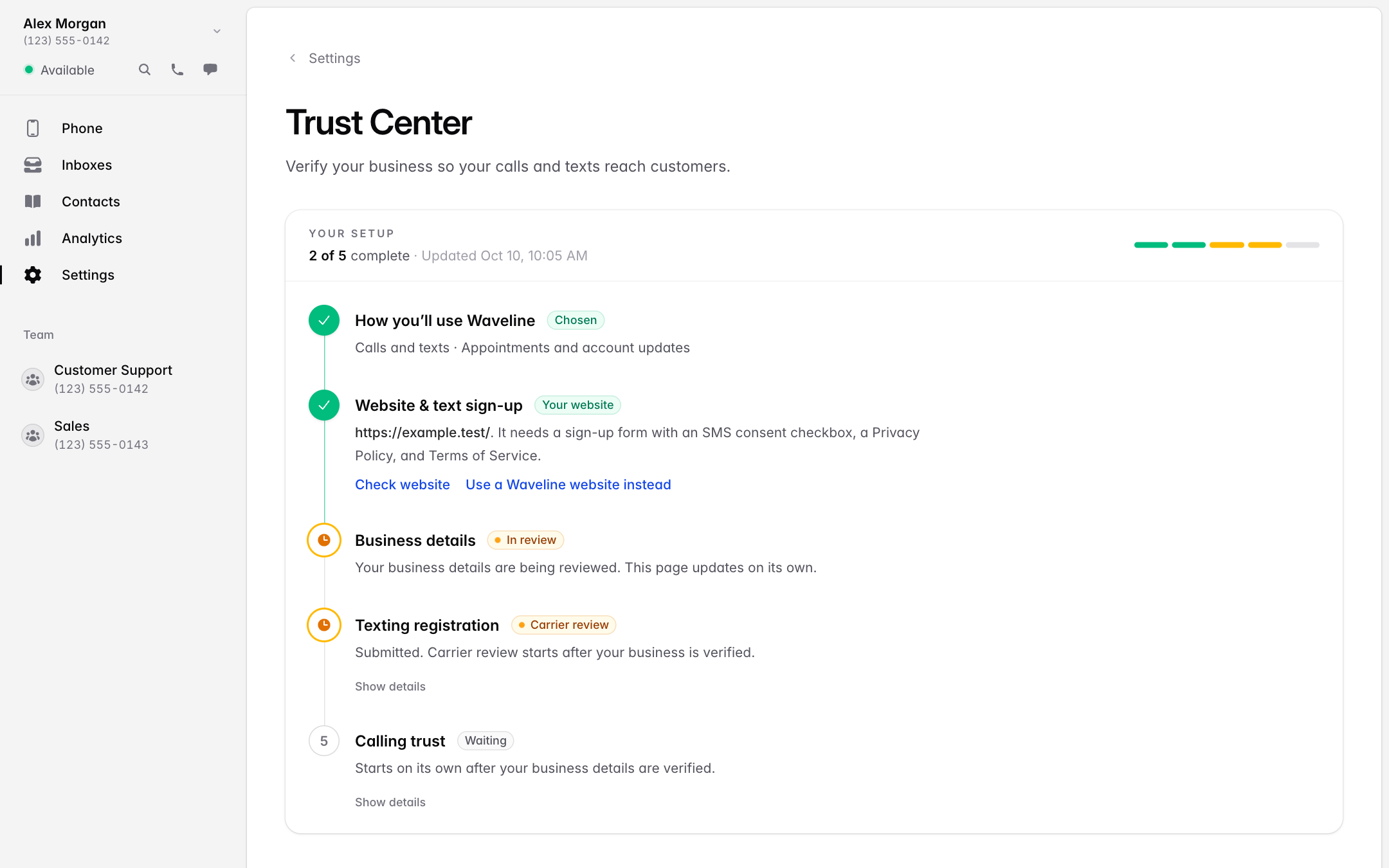
Return to Trust Center → Texting registration to follow progress. The row can show that setup needs to be started or continued, that it is under carrier review, that it needs a fix, or that it is approved.
Use the row’s current action to continue or correct the registration. Submitted details can be locked while review is active. A change to an unpublished website draft does not update the submitted registration.
The Trust Center Overview explains how website preparation, Business details, Texting registration, and Calling trust fit together.
Verify toll-free texting
Toll-free numbers use separate texting verification. Approval of a local-number texting registration does not verify a toll-free number.
- Open Settings → Trust Center as an Owner or Admin and find Toll-free numbers.
- Read any missing-information notice. If asked, complete the business details or select Add policy links, enter the public Privacy Policy and Terms of Service links, and select Save links.
- Select Add toll-free details, or Update toll-free details when available.
- Choose What are your texts for? and complete Describe your texting and A sample text. Each text field needs at least 20 characters; describe the actual customer messages and include opt-out wording in the sample.
- Choose How people agree to get texts and Texts per month. Add an HTTPS Link showing how people agree, such as the public sign-up page or an image showing that process.
- Select Save details and follow the status beside each toll-free number.
The details apply to eligible toll-free numbers that are not already approved or under carrier review. If your business details are still awaiting approval, the page shows that toll-free review is waiting. Saving the form does not mean the number is already verified.
If a number needs a correction, follow the issue and any correction deadline shown. Details can be locked while review is active or after approval. Contact Waveline Support when the page requests it or the necessary change is unavailable.
Best practices
- Describe the organization's real messaging use.
- Keep the description, consent flow, and samples consistent.
- Use public policies that identify the business.
- Include the business name in sample messages.
- Match the link and phone-number options to the samples.
- Avoid public link shorteners.
- Save a draft instead of entering placeholder content.
- Do not send broad outbound messages while registration is pending.
Troubleshooting
I cannot access Trust Center
Only organization Owners and Admins can access Trust Center. Ask an Owner or Admin to complete the registration or review your role under Settings → Team.
I do not see the SMS registration option
Confirm that you are an Owner or Admin. Look for Set up texting in Trust Center's Texting registration row, or use its current action to continue an existing setup. Submitted or approved registrations may show status information instead of an editable form. For a toll-free number, use Verify toll-free texting.
I cannot continue from Texting
In the Texting step, review highlighted fields, the selected purposes/category, the descriptions, and public policy URLs. For website-supplied fields, use Change on website and publish the corrected information before continuing.
My Campaign Description is not accepted
Use between 40 and 4,096 characters and clearly explain who receives the messages, why they receive them, and every major category of message the organization sends.
My consent flow was rejected
Describe the exact place and action through which customers opt in, what messages they agree to receive, and where they can review the applicable policies. Confirm that the description matches the real customer experience.
My policy URL is not accepted
Enter a complete URL beginning with http:// or https://. Confirm that the page is public, loads without signing in, identifies the organization, and does not contain placeholder content.
My sample messages are not accepted
Provide between two and five samples. Every non-empty sample must contain between 20 and 1,024 characters and should represent the selected use case, Campaign Description, and consent flow.
The embedded-content selections do not match
If a sample contains a URL, select Links. If a sample contains a phone number, select Phone numbers. Clear an option when none of the samples contains that type of content.
SMS registration is read-only
Submitted information can be locked while carrier review is active. Use the current action in Texting registration to continue an editable draft or correct a reported issue.
To change what you text about after approval, contact Waveline Support. Updating your website alone does not change the approved texting registration.
Brand registration remains under review
Follow the status in Texting registration. If you already selected Submit registration, wait for its review to continue rather than sending a duplicate submission.
If you only saved a draft, return to it and select Submit registration when ready. Saving alone does not submit it.
The Campaign is queued
The submitted registration is waiting for the next stage. You can leave Trust Center and return to check its progress. Do not create another submission just because this one is queued.
If the page instead offers Continue or Review & submit, follow that action to finish the draft.
The Campaign was rejected
Review the reason shown in Trust Center. Correct the identified use case, description, consent flow, policy, sample, or Business Profile issue before resubmitting. Do not resubmit unchanged information.
Trust Center says Waveline is handling this
Read the status message and allow Waveline to complete the indicated work. Do not repeatedly resubmit the same registration. Contact Waveline Support if you need help understanding the status.
My texting registration is Paused by carriers
Contact Waveline Support with the message shown in Trust Center. Do not repeatedly submit unchanged information.
I saved a correction, but the registration still needs a fix
Select Continue, review the correction, and select Submit registration when ready. Saving the correction does not send it for review.
Registration is approved, but the number cannot send messages
Open Settings → Trust Center, find the number under Your numbers, and check its texting status. Allow any remaining setup to finish and follow the action shown for a reported issue.
For a toll-free number, check its separate toll-free verification. If the number shows ready and sending still fails, see Message Delivery Issues or contact Waveline Support with the number and displayed error.
Messages are still being filtered after approval
Confirm that the message content matches the approved Campaign, the recipient provided consent, and any links are trustworthy and expected. Registration improves message trust but does not guarantee delivery of every message.